


To set up Family Connect, your child plans in the MyStudyLife student app, you download the Family Connect parent app, and you send a one-tap invite that your child accepts. Their schedule then appears in your app and stays in sync, and most families finish in under two minutes.

What is Family Connect?
Family Connect is the companion app from MyStudyLife for parents and other supporters. It links to your child’s student planner so you can follow homework, exams, grades and schedule. It is two apps with one link: your child keeps their own planner, and you get a parent app that stays in sync.
How do you set up Family Connect?
Set up Family Connect so a parent can see a child’s MyStudyLife schedule, homework, exams and grades.
Your child uses MyStudyLife
They add their classes, homework and exams in the student app, which works on web, iOS and Android.

You get Family Connect
Download the parent app from the App Store and sign in using your email. Family Connect is iOS only for now, so there is no Android version yet.

Send the invite
Send a one-tap invite from the parent app and your child accepts it.

No school setup is required. The parent app is listed on the App Store, and it is currently available on iOS only, so there is no Android version yet. Check the store listing for availability in your country.
What can you see once you are linked?
| Feature | What it does |
|---|---|
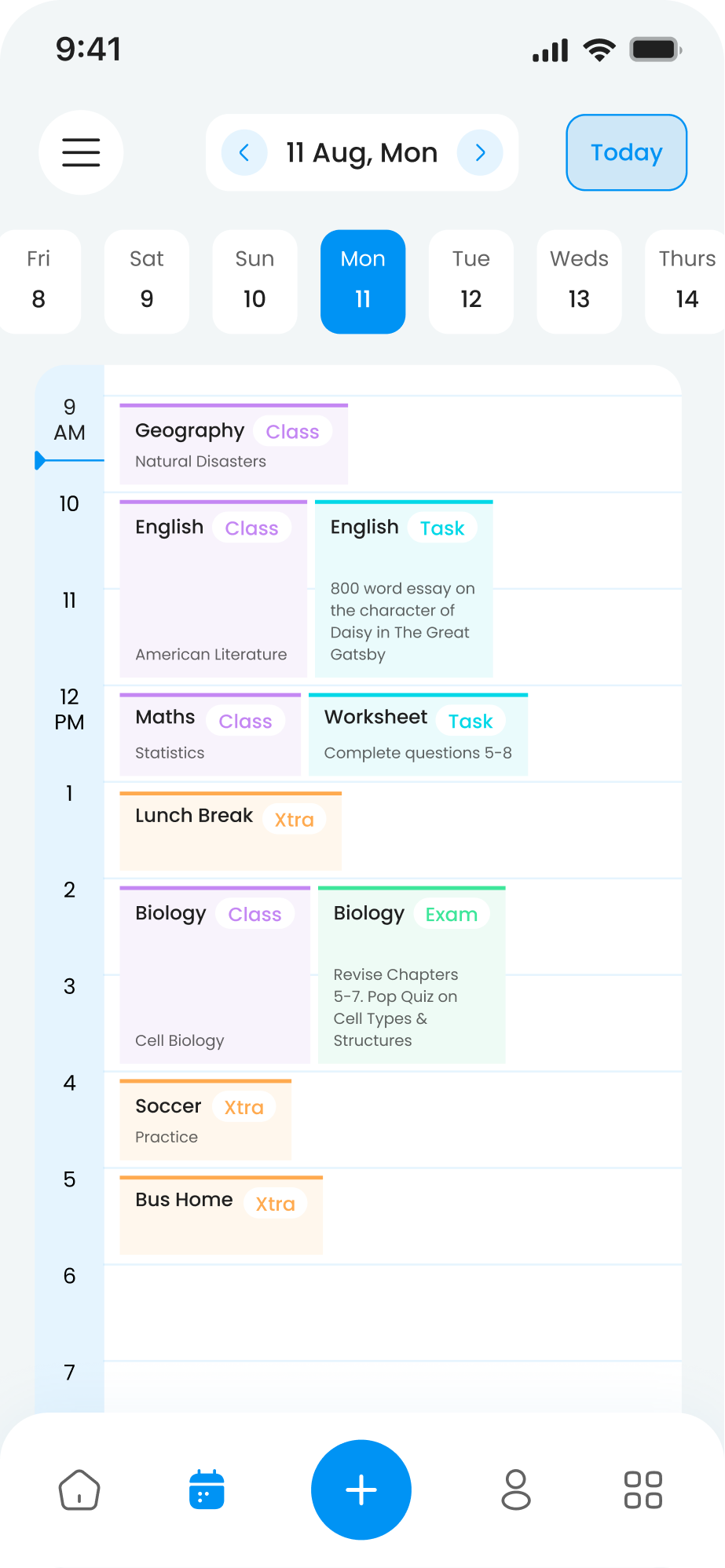
| Class schedule, homework and exams | Shows each child’s week, color-coded per child |
| Grades and test scores | Appear as they are posted, with term averages and trends |
| Deadline and grade alerts | Nudges before something is due, and a flag when a score slips |
| Shared family calendar | Classes, clubs, sports and shifts in one view |
| Private parent notes | Follow-up flags only you can see |
| Add homework or events | Syncs to your child’s planner |
Who else can be linked?
Family Connect is not only for parents. A student can invite anyone in their corner, including tutors, grandparents, guardians and coaches, and one student can share with up to five supporters. The student controls what each supporter can see. One subscription covers up to five students, and when you subscribe, your child unlocks MSL+, including Scout, the AI school assistant.
How do you introduce it without it feeling like surveillance?
Before you send the invite, agree three things with your child: what you will look at, how often, and what you will not comment on. Offer a weekly check-in rather than reacting to alerts in real time. The EEF’s parental engagement guidance notes that engaging families is hard and that how schools and parents work together matters, so a clear agreement up front is a sensible way to start. For wording ideas, read how to monitor your child’s grades without hovering.
FAQ
Is Family Connect free?
The student planner is free to start. Pricing for the parent subscription is shown in the App Store listing for your country.
Can my child see what I add?
Anything you add, such as homework or an event, syncs to their planner, which is how nudges reach them.
What if my child does not want to link?
Link is by invitation, so the conversation comes first. Their planner is theirs.
Is it compliant?
The parent page lists GDPR and COPPA compliance and states that data is never sold.
Related reading: Family Connect for parents | Best student planner app for parents | App tour
See also: Family Connect: see your child’s schoolwork without taking it over


