


Most parents of teenagers are stuck between two bad options. Either you ask “have you got homework?” every evening and get “no” every evening, or you install monitoring software and spend the next two years in an argument about privacy.
Family Connect is the middle option. Your child keeps their planner. You get to see what’s in it — classes, homework, deadlines, exams and grades — in a companion app made for parents, so you can help with the week rather than interrogate them about it.
Quick answer
– Family Connect is a parent app that syncs with your child’s MyStudyLife planner: timetable, homework, exams, grades and a shared family calendar.
– You send a one-tap invite by email; their private notes stay private and they keep control of their own planner.
– It works best as a weekly look at a set time, not a daily check.
What you can see
Enough to see a bad week coming. Not enough to run their week for them.
Once you’re connected, you see the same school week they do, kept in sync automatically:
- Their timetable. Which classes they have, on which days, including rotating week A and week B schedules.
- Homework and assignments. What’s been set, which subject it belongs to, and when it’s due.
- Exams. Dates and times, with the countdown to each one.
- Grades and test scores. Marks for quizzes, exams and assignments as they’re entered, with an alert if one slips.
- The whole family’s week. Classes, clubs, sports and shifts for every child on one shared calendar, colour-coded per child, with up to five students on one subscription.

What you can’t see, on purpose
This is the part we’d rather you read before you sign up.
Family Connect does not show you your child’s messages, their location, their browsing or their screen time, and their private notes stay private. It isn’t a monitoring tool and it isn’t designed to catch anyone out. It shows schoolwork, and only schoolwork.
You can add homework, events and reminders that sync to their planner — a gentle nudge rather than a takeover — but the planner stays theirs. That’s the thing that makes most teenagers willing to connect it in the first place.
That boundary is deliberate. The research on adolescent autonomy is fairly consistent: support that leaves a teenager in control of their own work tends to help, and control that takes it over tends to backfire. A parent who can see the deadlines is in a position to offer a lift to the library. A parent who rewrites the planner ends up owning the homework — so use the add-a-reminder feature sparingly, for the things they’d thank you for.
How to set it up

- Your child sets up MyStudyLife with their classes and timetable, if they haven’t already. The student planner is free on the web, iOS and Android.
- You download Family Connect, the MyStudyLife app for parents, and subscribe. One subscription covers up to five students.
- You send a one-tap invite to your child by email, and they accept it in their planner.
- Their week appears in your app — classes, homework, exams and grades — and stays in sync from then on. Most families are connected in under two minutes, with nothing needed from the school.
Subscribing also unlocks MSL+ on your child’s side, including Scout, the AI school assistant, so the upgrade is theirs as much as yours.
How to use it without it becoming a battleground

The feature is easy. The habit is the part worth thinking about.
Look on a Sunday, not every evening. A weekly look at what’s coming tells you where the pressure is. A nightly check reads as monitoring, however it’s meant.
Ask about the week, not the tasks. “Looks like you’ve got two things due Thursday — do you want Wednesday evening clear?” is useful. “Why haven’t you done your history?” is the old conversation with a new data source.
Use it for logistics. Exam on the other side of town, a 9am start, a project that needs materials from a shop. These are the things a parent can actually fix.
Tell them you’re looking. Agreeing it openly is what keeps it a shared tool rather than something discovered later.
Let some things go wrong. A missed deadline in Year 9 is a cheap lesson. The point of visibility isn’t to prevent every mistake; it’s to catch the ones that matter.
Who it’s for
It’s built for the parent who wants to see a bad week coming and nothing else. If the real worry is screens rather than schoolwork, the American Academy of Pediatrics’ family media plan is a better tool for that conversation than any planner.
Parents of students who are disorganised rather than unwilling. Most homework that doesn’t get done was forgotten, not refused. Shared visibility fixes forgetting.
Parents of students with ADHD or executive function difficulties, where the planning load genuinely is harder and a second pair of eyes helps. Our guide for parents of students with ADHD goes into more detail.
Parents in an exam year, where the calendar suddenly matters and everyone’s stressed. See the parents’ guide to exam season.
Separated families, where two households need the same information about who has what on which day.
Students in boarding or at a distance, where you can’t see the school bag.
What it costs
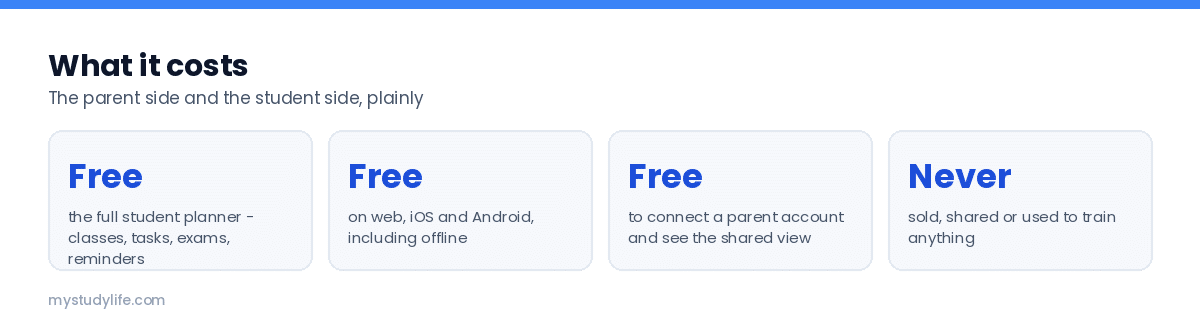
The student planner is free. Family Connect is a subscription for the parent side, and one subscription covers up to five students — each of whom gets MSL+ included. A student can also share their planner with up to five supporters, so both parents, a grandparent in another household and a tutor can all see the same week. Current pricing is on the Family Connect page.
What it looks like in a normal week
A weekly look is enough to catch the two things worth catching: a week where four deadlines land together, and a stretch where nothing has been ticked at all. Everything else is theirs. If you want the reasoning behind that line, our piece on visibility rather than surveillance covers where it sits, and Common Sense Media keeps a privacy rating for education apps if you want to check ours against the alternatives.
Sunday evening. The weekly digest arrives. Two pieces of history due Thursday, a chemistry test on Friday, and football on Wednesday. You mention Thursday looks busy and offer to make Wednesday evening quiet.
Tuesday. Nothing. You don’t look, because there’s nothing to look at.
Thursday morning. You already knew about the test, so the bag went in the car last night and nobody is shouting.
That’s the whole product. It is not dramatic, and the absence of drama is the point: most family conflict about schoolwork comes from information arriving too late, and this moves the information forward by a few days.
Setting the student side up properly
Family Connect only shows what’s in the planner, so the planner has to be accurate. Twenty minutes at the start of term does it:
- Classes, with days, rooms and teachers, including the week A / week B rotation.
- Term dates, so the timetable knows which weeks are school weeks.
- Exam dates as they’re announced.
- Repeating work — weekly spellings, Friday tests, a recurring reading — set once as repeating tasks.
Then it runs, with new homework added in class as it’s set.
In short
Family Connect gives a parent the schoolwork — schedule, deadlines, exams and grades — and leaves everything else alone. Set it up together, look once a week, and ask about the week rather than the item. If you’re new to this, start with helping a teenager get organised and the parent guide to study apps.
Frequently asked questions
Can my child see that I’m looking?
Yes. They accepted the invite, they can see the connection, and they keep control of their own planner. That’s by design — a visibility tool that hides itself is a monitoring tool.
Can I add tasks or edit their planner?
You can add homework, events and reminders, and they sync to your child’s planner. You can’t see or change their private notes. In practice, use it for logistics — a dentist appointment, a reminder about kit — and leave the schoolwork entries to them.
Does it show grades or test results?
Yes. Grades and test scores appear as they’re entered, and you can get an alert when a mark slips. Whether to raise a low mark that week, or wait for the pattern, is the parenting decision the tool leaves to you.
Does it track their location or phone use?
No. Neither, at all.
What if my child won’t connect their account?
Don’t force it — a connection made under duress becomes a planner nobody updates. Start with the problem you’re actually trying to solve (“I keep finding out about deadlines too late”) and offer this as the fix. Our article on how much you should see covers that conversation.
Can both parents connect?
Yes. A student can share their planner with up to five supporters — both parents, a step-parent, a grandparent in another household, a tutor — and each sees the same always-in-sync view.
Is it available in my country?
MyStudyLife is used in 197 countries, and Family Connect works wherever the app does.
What ages is it for?
It’s built for secondary school and university students — roughly 11 and up. MyStudyLife is GDPR and COPPA compliant, so the sign-up flow handles the consent steps that apply where you live.
See also: Family Connect setup guide: link your child’s planner in 3 steps


